
Download Key Remapper
for Windows (2026)
Remap keyboard keys, mouse buttons, and scroll wheel actions to other keys or combinations. No registry edits – changes apply instantly.
What Is Key Remapper?
A quick look at what this remapping tool does, how it works, and who it was built for.
Key Remapper is a keyboard and mouse remapping utility for Windows, developed by ATNSOFT. If you have ever wanted to change what a specific key does on your keyboard – turn CapsLock into Escape, make a side mouse button trigger Alt+Tab, or disable that Insert key you keep hitting by accident – Key Remapper handles all of it through a straightforward visual interface.
How It Works
The program intercepts keyboard and mouse input at the driver level, before Windows processes it. When you press a remapped key, Key Remapper catches the original input and sends the replacement instead. This happens fast enough that there is no noticeable delay, and it works across virtually all Windows applications.
The key difference from registry-based tools like SharpKeys is that Key Remapper does not write scan code mappings to the Windows registry. Your remappings are only active while the program is running, and you can add, change, or remove them on the fly without restarting your computer.
What You Can Remap
Key Remapper handles three categories of input devices:
- Keyboard keys – remap any key to another, map single keys to multi-key combinations, swap two keys, or block keys entirely
- Mouse buttons – reassign left, right, middle, X1, and X2 buttons to keyboard shortcuts or other mouse actions
- Scroll wheel – turn scroll up/down into key presses for volume control, zooming, page navigation, and more
You can also restrict remapping rules to specific programs, so your custom mappings activate only in the applications where you need them.
Who Uses Key Remapper
Programmers who want Escape on CapsLock. Gamers remapping mouse side buttons to in-game commands. Office workers adjusting to a new keyboard layout. People with accessibility needs who find certain keys difficult to reach. Anyone with a broken key who needs a quick workaround until they get a replacement.
Key Remapper version 1.13 supports Windows 11 all the way back through Windows XP, runs on both 32-bit and 64-bit systems, and the installer weighs in at just 2.7 MB.
Key Features
Everything Key Remapper can do, from basic key swaps to per-application rules and profile management.
Keyboard Key Remapping
Remap any keyboard key to another, including keys that do not physically exist on your keyboard. Works with standard keys, function keys, multimedia keys, and special keys like Print Screen or Scroll Lock.
Mouse Button Remapping
Reassign left, right, middle, X1, and X2 mouse buttons to keyboard keys or other mouse actions. Useful for mice with extra side buttons you want to repurpose for shortcuts.
Scroll Wheel Actions
Map mouse scroll wheel up and down to keyboard keys or key combinations. Turn your scroll wheel into a volume control, page navigator, or zoom trigger without touching the keyboard.
Key Swapping
Swap two keys so each one takes on the other’s function. A common use case: swapping CapsLock and Ctrl for more comfortable keyboard shortcuts, or swapping Left Alt and Left Windows.
Key Combinations
Map a single keypress to a multi-key combination. Press one key and send Ctrl+Shift+Esc, Alt+F4, or any modifier combination you need. Turns complex shortcuts into a single tap.
Key Blocking
Disable specific keys or mouse buttons entirely. If you keep hitting Insert by accident, or want to lock out certain keys for a child, blocking lets you deactivate them completely.
Application-Specific Rules
Restrict remapping rules to specific programs. Your remaps can be active only in Photoshop, only in your browser, or only in a particular game – each application gets its own set of rules.
Profile Management
Save different sets of remapping rules as profiles and switch between them with a click. Keep separate profiles for work, gaming, and general use without recreating your mappings each time.
Double Press Emulation
Trigger double key presses with a single tap and set a custom delay between presses. Helpful for applications that require double-click inputs or for accessibility setups where repeated presses are difficult.
System Requirements
Key Remapper is lightweight and runs on almost any Windows machine. Here are the minimum and recommended specs.
| Component | Minimum | Recommended |
|---|---|---|
| Operating System | Windows 7 SP1 (32/64-bit) | Windows 10 or 11 (64-bit) |
| Processor | Any x86/x64 CPU | 1 GHz or faster |
| RAM | 2 GB | 4 GB |
| Disk Space | 200 MB free | 500 MB free |
| Display | 800 x 600 | 1024 x 768 or higher |
| Permissions | Standard user (limited) | Administrator |
Download Key Remapper 1.13
Get the latest version for Windows. The installer is just 2.7 MB and takes under a minute to set up.
Version 1.13 (build 480) · keyremapper_setup.exe · 2.7 MB
Download Key Remapper 1.13 Windows 10/11 · 2.7 MB · Free TrialThis links to the official ATNSOFT installer. Key Remapper is shareware – the free trial includes all features for an evaluation period. After the trial, a one-time license purchase is required for continued use.
Screenshots
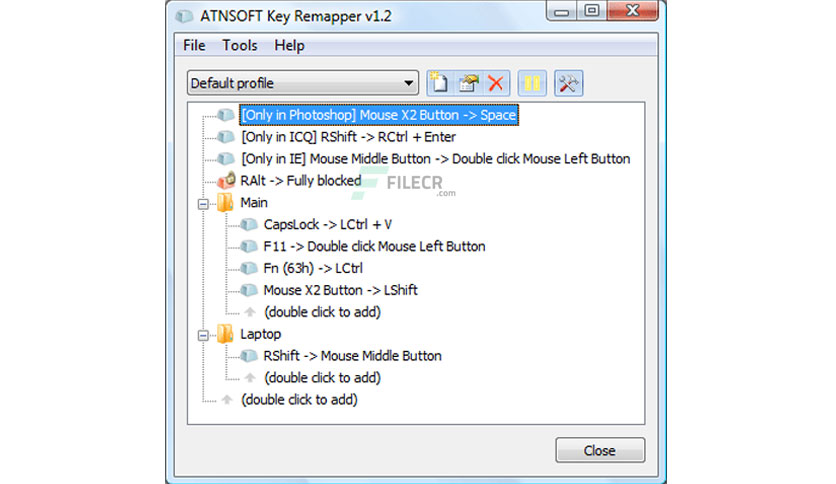
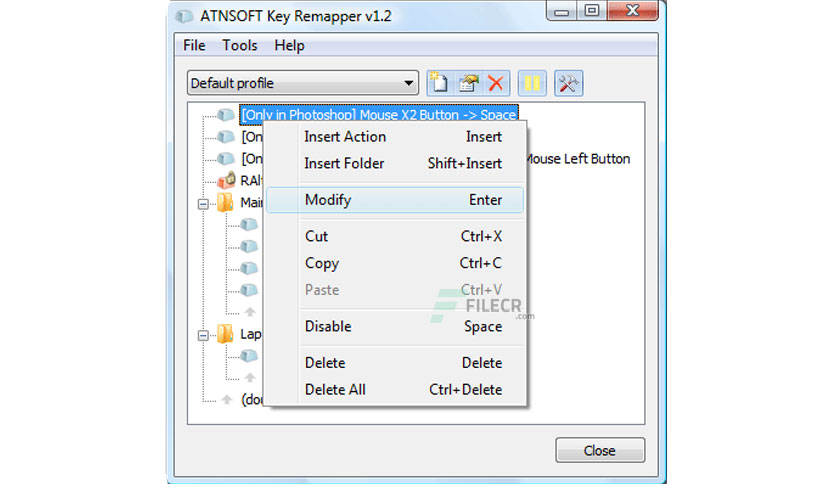
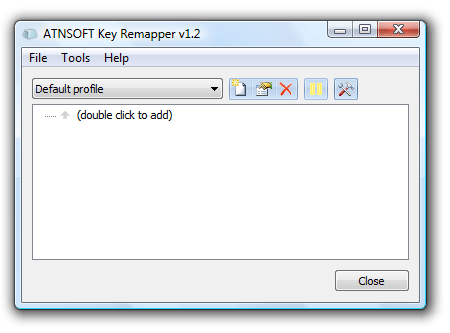
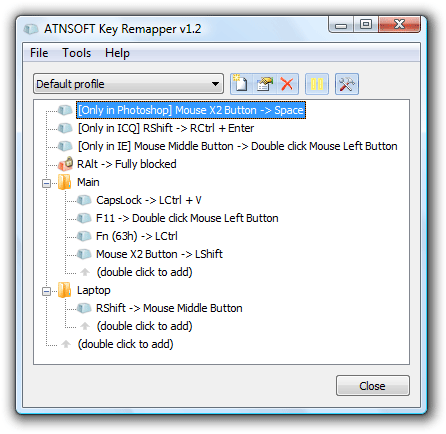
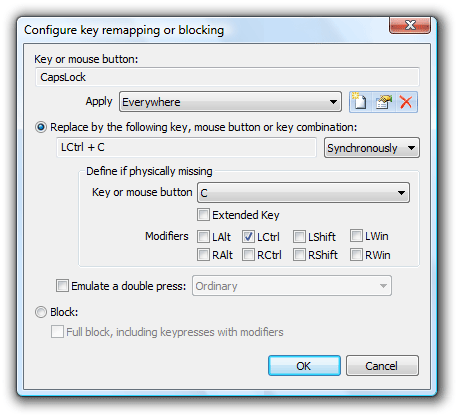
See Key Remapper in action. Click any image to view it full-size.
How to Install Key Remapper
From download to your first remap in under five minutes. Follow these steps to get started.
Download the Installer
Head to our download section and click the download button to get the Key Remapper installer file (keyremapper_setup.exe). The file is only 2.7 MB, so it downloads in seconds even on slower connections.
Once the download finishes, locate the file in your Downloads folder (or wherever your browser saves files by default).
Run the Installation Wizard
Double-click keyremapper_setup.exe to launch the installer. If Windows SmartScreen shows a warning dialog, click “More info” and then “Run anyway.” This is normal for software from smaller developers that has not been submitted to Microsoft’s code signing program.
The installation wizard will guide you through a few steps:
- Accept the license agreement
- Choose the installation directory (the default path works fine for most users)
- Optionally create a desktop shortcut
- Click “Install” to begin the installation
The whole process takes about 30 seconds.
Launch and Explore the Interface
After installation, launch Key Remapper from the Start menu (under ATNSOFT) or the desktop shortcut. The program opens with the main window showing an empty remapping list and a toolbar at the top.
Take a moment to look around. The interface is straightforward: a list area for your remapping rules, buttons to add/edit/delete rules, and a profile selector at the top. The program also places an icon in your system tray for quick access.
Create Your First Remap
To set up your first key remapping:
- Click the “Add” button (or the plus icon) in the toolbar
- In the “From” field, press the key you want to remap (for example, CapsLock)
- In the “To” field, press the key you want it to become (for example, Escape)
- Click OK to save the remap
The change takes effect immediately – no restart needed. Press CapsLock and it will now act as Escape. To undo it, just select the rule and click “Delete.”
Save Your Profile and Fine-Tune
Once you have your remaps configured, save them as a profile (File > Save Profile). This lets you reload your setup after reinstalling, or switch between different configurations for work, gaming, and everyday use.
To make Key Remapper start automatically with Windows, open Options and enable the “Start with Windows” setting. Your remapping rules will be active from the moment your desktop loads.
Ready to get started? Download Key Remapper and set up your first remap in minutes.
Frequently Asked Questions
Detailed answers to common questions about Key Remapper – licensing, compatibility, troubleshooting, and comparisons with alternatives.
Is Key Remapper free to download?
Key Remapper offers a free trial that includes every feature with no restrictions during the evaluation period. You can download and test the full program without entering payment details or creating an account.
Here is how the licensing works:
- Free trial – Full access to all features (key remapping, mouse remapping, profiles, per-app rules) for a limited evaluation period
- Personal license – A one-time purchase from ATNSOFT that removes the trial limitation and covers use on a single computer
- No subscription – You pay once and own the license permanently, including all minor version updates
During the trial, you will see a reminder dialog when the program starts, but all functionality works exactly the same as the paid version. There are no feature-locked tiers or premium-only options. If the trial expires and you decide not to purchase, you can simply uninstall the program – no leftover files or services remain on your system.
Is Key Remapper safe for Windows 11?
Yes, Key Remapper v1.13 is safe to use on Windows 11 (including 22H2, 23H2, and 24H2 updates). The program has been tested across multiple Windows 11 builds and works without compatibility issues.
Here is why it is safe:
- No registry changes – Key Remapper does not modify the Windows registry, system files, or boot configuration. It works entirely in memory while running.
- No drivers installed – The program uses standard Windows input hooks (SetWindowsHookEx API) rather than installing custom kernel drivers, which means it cannot cause blue screens or system instability.
- Clean uninstall – You can remove it through Windows Settings > Apps or Control Panel. No traces are left behind.
- No network access required – Key Remapper does not phone home, collect telemetry, or require an internet connection to function.
Some antivirus programs may flag Key Remapper because it hooks into keyboard input – this is expected behavior for any remapping tool and is a false positive. If flagged, add keyremapper.exe to your antivirus exclusion list.
What are the system requirements for Key Remapper?
Key Remapper is lightweight and runs on almost any Windows PC. Here are the full requirements:
- Operating System: Windows 11, 10, 8.1, 8, 7, Vista, or XP (both 32-bit and 64-bit editions). Also works on Windows Server 2003 through 2025.
- Processor: Any x86 or x64 CPU. No minimum clock speed – even decade-old processors handle it without issue.
- RAM: 2 GB minimum (4 GB recommended). Key Remapper itself uses less than 10 MB of memory while running.
- Disk Space: 200 MB free for installation. The actual installed size is much smaller, but Windows needs buffer space for the installer to run.
- Display: 800 x 600 minimum resolution. 1024 x 768 or higher recommended for comfortable use of the interface.
- Permissions: Administrator rights are recommended. Without admin rights, Key Remapper still works but cannot intercept key presses inside elevated (Run as Administrator) programs.
There is no GPU requirement, no .NET framework dependency, and no need for special hardware. If your computer can run Windows, it can run Key Remapper.
How do I update Key Remapper to the latest version?
Download the latest installer from our download section and run it directly. The new version installs over the existing one automatically.
Step-by-step update process:
- Step 1: Download the latest keyremapper_setup.exe from this page
- Step 2: Close Key Remapper if it is currently running (right-click the system tray icon and select Exit)
- Step 3: Run the new installer and follow the wizard
- Step 4: Launch Key Remapper again
Your saved profiles, remapping rules, and settings are preserved during the update. You do not need to uninstall the old version first – the installer handles the upgrade in place.
Key Remapper does not have a built-in auto-update feature, so you need to check for new versions manually. The current version (1.13 build 480) was released on February 18, 2022. You can check the version history on the ATNSOFT website to see if a newer build is available.
Can Key Remapper remap mouse buttons and scroll wheel?
Yes, mouse remapping is one of Key Remapper’s strongest features and a major reason people choose it over simpler tools like SharpKeys or PowerToys.
Here is exactly what you can do with mouse input:
- Mouse buttons: Remap any of the five standard mouse buttons (left, right, middle, X1/back, X2/forward) to keyboard keys, key combinations, or other mouse buttons
- Scroll wheel: Remap scroll-up and scroll-down to any keyboard key or key combination. For example, you can turn the scroll wheel into a volume knob by mapping scroll-up to Volume Up and scroll-down to Volume Down.
- Mouse-to-mouse: Remap one mouse button to another (e.g., swap left and right click, or make X1 act as middle-click)
- Block mouse buttons: Disable specific mouse buttons entirely if they trigger by accident
A popular use case: gamers often remap X1 and X2 (the side buttons on most gaming mice) to keyboard shortcuts like Alt+Tab or Ctrl+C. Another common setup is mapping scroll-up/down to Page Up/Page Down for faster document navigation.
All mouse remapping rules support per-application restrictions, so you can have different mouse behaviors in different programs.
Does Key Remapper work on Mac or Linux?
No, Key Remapper is a Windows-only application. It relies on the Windows SetWindowsHookEx API to intercept keyboard and mouse input at the OS level. This API does not exist on macOS or Linux, so Key Remapper cannot be ported or run through compatibility layers like Wine.
Here are the recommended alternatives for other operating systems:
- macOS: Karabiner-Elements is the standard choice. It is free, open-source, and supports complex key remapping with per-application rules. It is widely used by Mac developers and power users.
- Linux: Several options exist depending on your setup. xmodmap handles simple key swaps. xremap is a newer tool with per-application support. keyd works at a lower level and does not depend on X11/Wayland. For scripting-level control, AutoKey provides text expansion and macros.
- Chrome OS: Built-in keyboard settings allow basic remapping of modifier keys. For anything more advanced, you need to enable the Linux subsystem (Crostini) and use a Linux tool.
None of these alternatives are made by ATNSOFT – they are separate projects with their own learning curves.
Key Remapper vs AutoHotkey – which is better for remapping keys?
Key Remapper is better for quick, visual key remapping. AutoHotkey is better for complex automation and scripting. They solve different problems, and the right choice depends on what you need.
Choose Key Remapper if:
- You want a point-and-click interface with no scripting required
- You need to remap mouse buttons and scroll wheel (AutoHotkey supports this but requires more work)
- You want to be up and running in under a minute
- You need per-application rules without writing conditional logic
- You prefer a traditional Windows application with a UI over editing text files
Choose AutoHotkey if:
- You need complex macros (multi-step actions, delays, loops, conditional logic)
- You want text expansion (type an abbreviation and it expands to a full phrase)
- You need to launch programs, open URLs, move windows, or automate any Windows task
- You are comfortable writing simple scripts and want maximum flexibility
- You want a completely free tool with no trial limitations
Many users actually run both: Key Remapper for simple persistent remaps (like CapsLock to Escape), and AutoHotkey for scripted automations that go beyond what a remapper can do.
Key Remapper vs PowerToys Keyboard Manager – what is the difference?
PowerToys Keyboard Manager is simpler and free. Key Remapper is more capable, especially for mouse input. Both offer visual interfaces for remapping keys without writing code.
Here is a direct comparison:
- Price: PowerToys is completely free (made by Microsoft). Key Remapper requires a license after the trial.
- Keyboard remapping: Both handle single-key and shortcut remapping well. PowerToys also supports remapping shortcuts to text strings and app launches (added in 2024).
- Mouse support: Key Remapper can remap all mouse buttons and scroll wheel actions. PowerToys Keyboard Manager has no mouse remapping at all – this is the single biggest difference.
- Key blocking: Key Remapper lets you disable keys entirely. PowerToys cannot block keys – you can only remap them to something else.
- Per-app rules: Both support application-specific remapping. PowerToys identifies apps by process name. Key Remapper identifies them by executable path or window title.
- Profiles: Key Remapper supports multiple switchable profiles. PowerToys does not have a profile system – all remaps are always active.
- Double-press: Key Remapper can emulate double key presses with custom delays. PowerToys cannot.
Bottom line: If you only need to remap keyboard keys and shortcuts, PowerToys is free and works great. If you need mouse button remapping, key blocking, profiles, or double-press emulation, Key Remapper is the better choice.
Key Remapper vs SharpKeys – which should I use?
SharpKeys and Key Remapper work at completely different levels. SharpKeys writes directly to the Windows registry (the Scancode Map value), while Key Remapper intercepts input through software hooks at runtime.
Here is what that means in practice:
- Permanence: SharpKeys remaps persist even without the program running (they are baked into the registry). Key Remapper remaps are active only while the program runs in the background.
- Restart required: SharpKeys requires you to log out and back in (or reboot) for changes to take effect. Key Remapper applies changes instantly with no restart.
- Scope: SharpKeys only does simple one-to-one key remaps. Key Remapper supports key-to-combination, mouse buttons, scroll wheel, key blocking, per-app rules, profiles, and more.
- Reversal: SharpKeys changes require another registry edit plus restart to undo. Key Remapper changes disappear the moment you close the program or delete a rule.
- Cost: SharpKeys is completely free and open-source. Key Remapper is shareware with a paid license.
Use SharpKeys if you want a permanent, always-on, simple key swap (like remapping CapsLock to Ctrl) that works even in the BIOS/UEFI password screen. Use Key Remapper if you need anything more than basic one-to-one remapping, or if you want the flexibility to change your mappings without restarting.
Does Key Remapper modify the Windows registry?
No, Key Remapper does not modify the Windows registry. This is one of its key design principles and a significant difference from tools like SharpKeys.
Here is how Key Remapper works under the hood:
- It installs a low-level keyboard hook (WH_KEYBOARD_LL) and a low-level mouse hook (WH_MOUSE_LL) through the standard Windows API
- When you press a remapped key, the hook intercepts the input before Windows processes it
- Key Remapper blocks the original keypress and injects the replacement key/combination instead
- This all happens in user-mode memory – nothing is written to disk, the registry, or any system configuration file
The practical advantage: you can experiment freely with remapping rules. If something goes wrong, just close Key Remapper (Ctrl+P pauses it, or right-click the tray icon and Exit) and your keyboard instantly returns to its default behavior. No registry cleanup, no reboot, no risk of locking yourself out of your own computer.
Key Remapper does store your remapping profiles and settings in its own configuration files (in the program’s installation folder), but it never touches the Windows Scancode Map registry key that tools like SharpKeys use.
How do I make Key Remapper start automatically with Windows?
Open Key Remapper, go to Options, and enable “Start with Windows.” This adds the program to your Windows startup so your remapping rules are active from the moment you log in.
Detailed steps:
- Step 1: Open Key Remapper (from the Start menu, desktop shortcut, or system tray icon)
- Step 2: Click the Options menu in the toolbar (or press Alt+O)
- Step 3: Check the “Start with Windows” or “Run at system startup” option
- Step 4: Close the Options dialog
From now on, Key Remapper will launch automatically every time you log into Windows. It starts minimized to the system tray, so you will not see a window pop up – just the small icon near your clock.
If you want Key Remapper to start completely hidden (no splash screen, no visible window), you can add the /hidden or /autorun command-line switch to the startup shortcut. Right-click the shortcut, go to Properties, and append /hidden to the Target field after the .exe path.
Can I use Key Remapper with specific programs only?
Yes, Key Remapper supports per-application remapping rules. You can make any remap active only inside specific programs, or active everywhere except specific programs.
How to set up per-application rules:
- Step 1: Create or edit a remapping rule
- Step 2: In the rule properties, find the “Apply to” or “Active in” field
- Step 3: Add the target application by browsing to its .exe file or by window title
- Step 4: Save the rule
The rule will now only activate when the specified program has focus. When you switch to a different application, the remap turns off automatically.
Common use cases:
- Remap CapsLock to Escape only in code editors (VS Code, Vim, Sublime Text)
- Remap mouse X1/X2 buttons to specific shortcuts only in Photoshop or Blender
- Block certain keys only in games where they cause accidental actions (like the Windows key)
- Have different scroll wheel behavior in a browser vs. in a spreadsheet application
You can also use folders in Key Remapper to group related per-application rules together, making it easier to manage complex setups. Use Shift+Insert to create a folder, then drag rules into it.
How to fix Key Remapper not detecting keys or hook errors?
Hook errors and key detection failures are the most common issues with Key Remapper. Here is how to diagnose and fix them:
Problem: “Keyboard Hook Error” or “Mouse Hook Error” on startup
- Update Key Remapper to the latest version (v1.13 build 480) – older versions had hook stability issues that were fixed in v1.12+
- Make sure Windows is fully updated – missing OS patches can cause hook registration failures
- Open Key Remapper Options and disable “Remap internal programmatic key presses” and “Remap internal programmatic mouse button presses” if you do not need them
- Check for conflicts with other software that hooks keyboard input (antivirus, other remappers, macro software)
Problem: Remapping does not work in certain programs
- The target program is likely running as Administrator while Key Remapper is running as a standard user. Fix: run Key Remapper as Administrator (right-click shortcut > Run as administrator)
- Check if Key Remapper is paused – middle-click the system tray icon or press Ctrl+P to toggle pause
- Verify the per-application rule paths are correct if you moved or reinstalled the target program
Problem: Modifier keys (Shift, Ctrl, Alt) get stuck
- This was a known bug fixed in version 1.12. Update to v1.13 if you are on an older version.
- If it still happens, press and release each modifier key individually to unstick them
What is the difference between Key Remapper and Key Manager?
Key Remapper and Key Manager are both made by ATNSOFT, but they target different levels of complexity. Think of Key Remapper as the focused tool and Key Manager as the full-featured power tool.
Key Remapper handles:
- Remapping keys, mouse buttons, and scroll wheel to other keys or key combinations
- Swapping keys, blocking keys, double-press emulation
- Per-application rules and profile management
Key Manager adds everything above plus:
- Custom actions: Assign keys to launch programs, open files, open URLs, open folders
- Text insertion: Map a key to type out a full text string (like a text expander)
- Media control: Dedicated actions for play/pause, next track, volume, mute
- Window management: Move, resize, minimize, maximize, or close windows with key presses
- Script execution: Run command-line scripts or batch files from a key press
- Key combination remapping: Remap multi-key combos (like Ctrl+Shift+A) to other combos or actions – Key Remapper only remaps single keys
Price difference: Key Manager costs more than Key Remapper. If you only need to remap keys and mouse buttons to other keys, Key Remapper is sufficient and costs less. If you need the action-assignment features listed above, Key Manager is the upgrade path.